For your new visitors, note that clear collection of consent regarding open tracking must be expressed through your signup pop-ins.
Note: This configuration is suitable when your pop-in has a single purpose, such as newsletter signup. If your form pursues multiple objectives (newsletter signup, account creation, content download, game participation, etc.), consent collection must be adapted based on the purposes offered.
The system implemented by our team on the Pop-in editor of the new version thus offers the possibility of doing without checkboxes.
If you are using the new version of the ShopiMind Pop-in editor, here is the modification to make to your pop-in to ensure you are in compliance with CNIL recommendations:
In the ShopiMind Pop-in editor, consent management is located at the level of the Call to action button directly.
Click on the CTA of your template, then go to the Consents section.
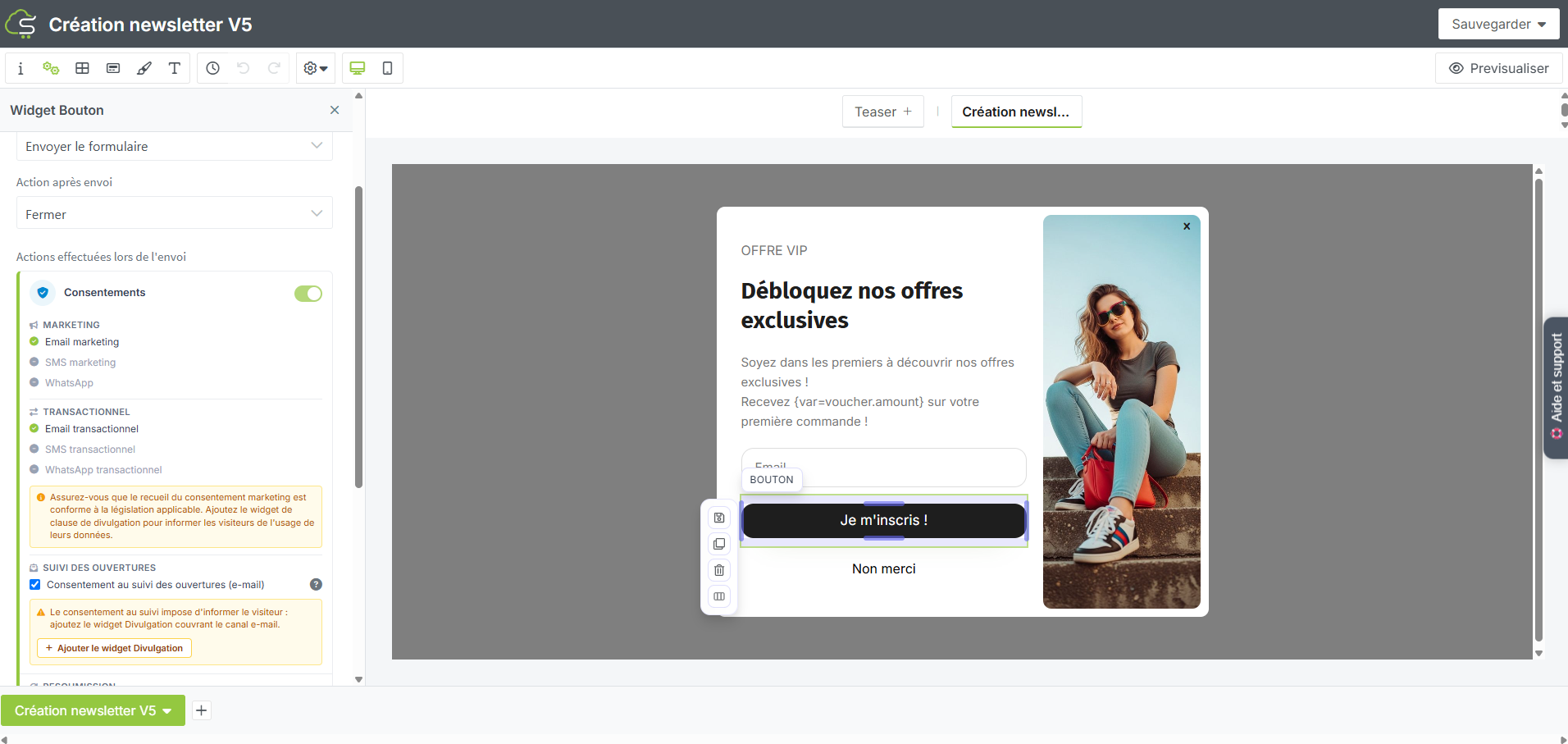
Then click on the "Consent to open tracking" button in the "Open tracking" subsection.
To comply with CNIL recommendations and make the choice clear for your visitors, click on the "Add disclosure widget" button.
By clicking this button, a complete notice appears with the mandatory mentions to be displayed on a newsletter signup pop-in and specifies the collection of email open measurement.
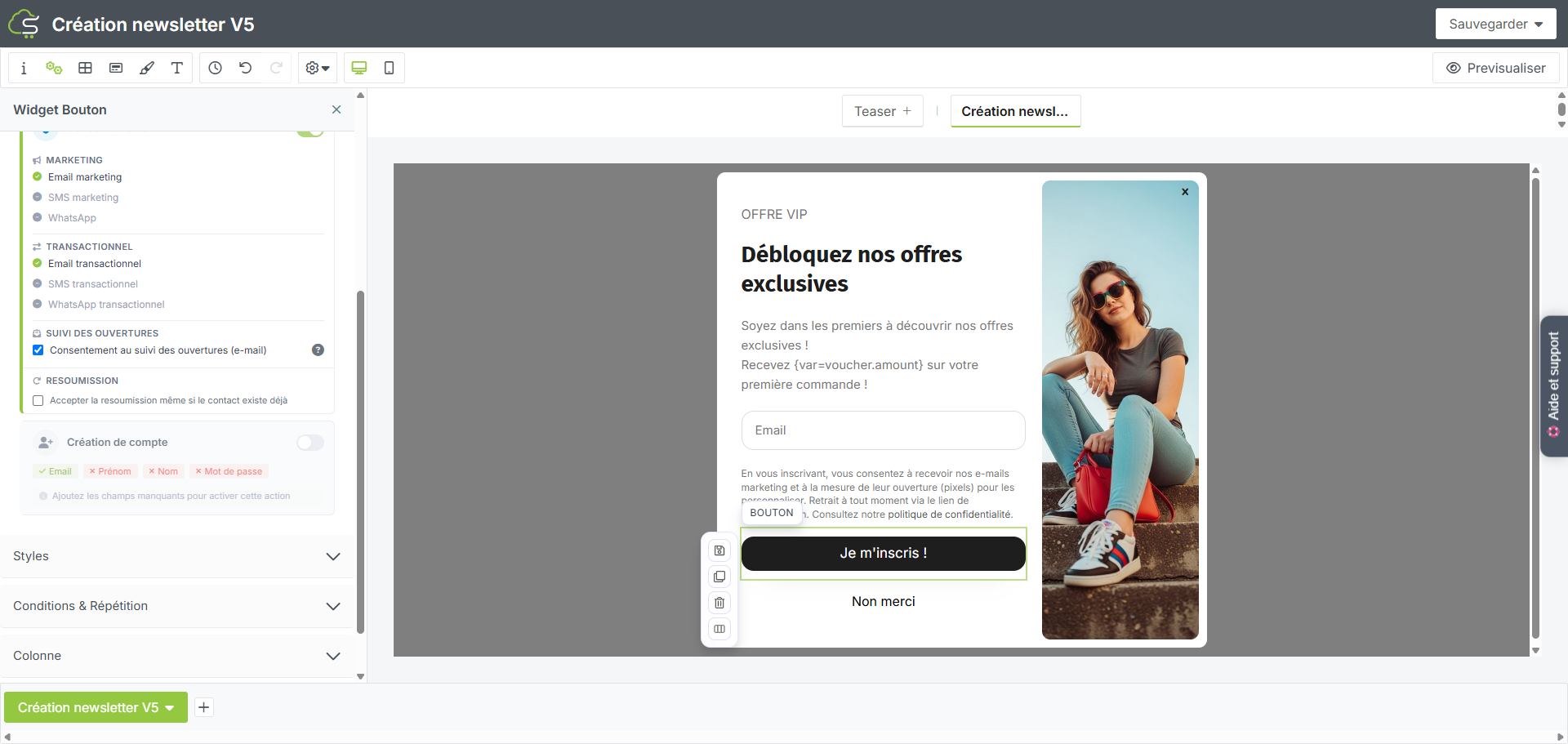
You can also find all the steps of this procedure through a step-by-step video:
Your turn!
